OSX NEWS: iPhone
Showing posts with label iPhone. Show all posts

How to Restart iPhone 6, 6 Plus, 6S, & 6S Plus

How do I restart iPhone 6, iPhone 6 Plus, iPhone 6S, and iPhone 6S Plus? Although it is past its popularity, there are still people who use it. 

If you're one of the people still using the iPhone 6 series and want to know how to restart your Apple smartphone, then read this article until it's finished.

As your phone ages, many problems often arise. And rebooting your phone is one simple and easy solution to fix.  

Some iPhone 6 issues that can be addressed by restarting the device
how to restart iphone 6

Rebooting your iPhone 6 means turning off your device and then turning it on again. Usually useful to solve various problems on the phone such as:

  1. Mobile phones are sluggish.
  2. It's hot.
  3. Blank.
  4. And cell phones don't respond to anything.

The easiest way to solve this is to restart your mobile device, usually your iPhone 6 will normally work again. If that can't resolve the issue, you can use DFU mode to resolve it.

How to Reboot iPhone series 6

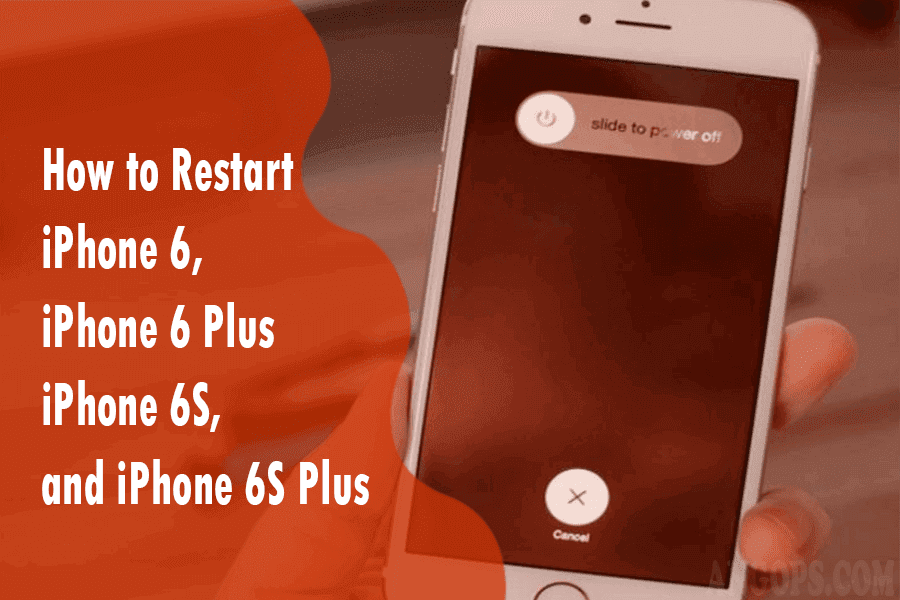
  • Power off: Press and hold the power button for a few seconds. Next comes the message: "Slide to power off." Please slide the slider to turn off your iPhone 6.
  • Power on: Press and hold the power button once again for a few seconds. The Apple logo will be visible when your iPhone starts booting.

How to force restart iPhone 6, iPhone 6 Plus, iPhone 6S, and iPhone 6S Plus

When your iPhone is in trouble, and the blank screen is black, then you can't get soft restart your phone. For that, you need to force restart your iPhone 6 or hard reset it to factory settings. How:

  1. Press and hold the Power button along with the Home button for a few seconds until the screen is off or black.
  2. Keep holding until the screen is on again. 
  3. After the Apple logo appears, release both buttons (Power and Home), and your iPhone will restart.

When to Soft Restart and Force Restart Your iPhone 6?

A regular soft restart or reboot on an iPhone 6 (i.e., turning off and restarting your phone) is ideal for situations when your phone is problematic such as unresponsive, slow, and running abnormally. And force restart iPhone 6 is used when your phone does not allow you to perform regular restarts. 

If your phone can't turn off using the power button, you'll need to force reboot your iPhone. This happens when the power button on your iPhone doesn't respond to commands, or when the screen doesn't respond (so you can't swipe to shut down), or when your iPhone 6 crashes completely.

What's the Difference Between Soft Restart, and Force Restart iPhone 6?

Soft restart is also known as a simple reboot; you simply turn off and restart your mobile device. Restarting your phone in this way is very safe, as it does not remove any information from your smartphone. If the phone is still in trouble afterward, a hard restart may be required.

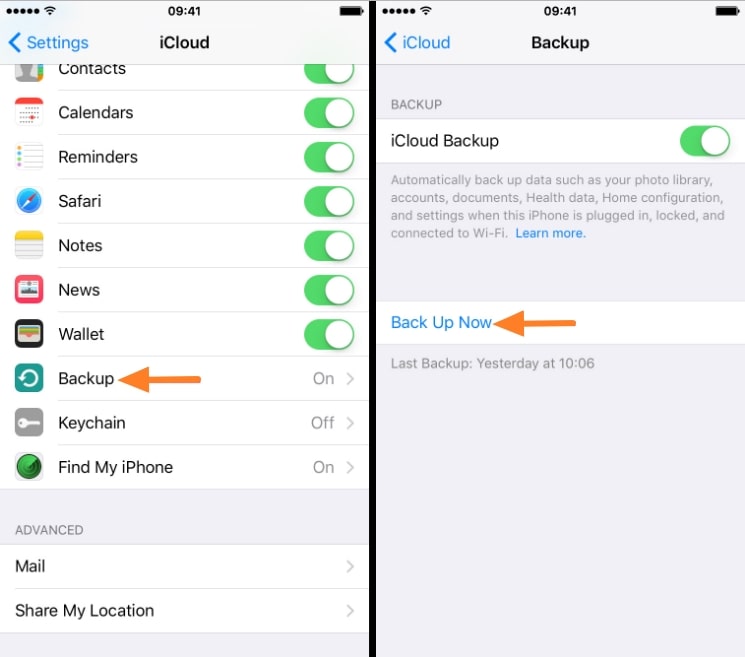
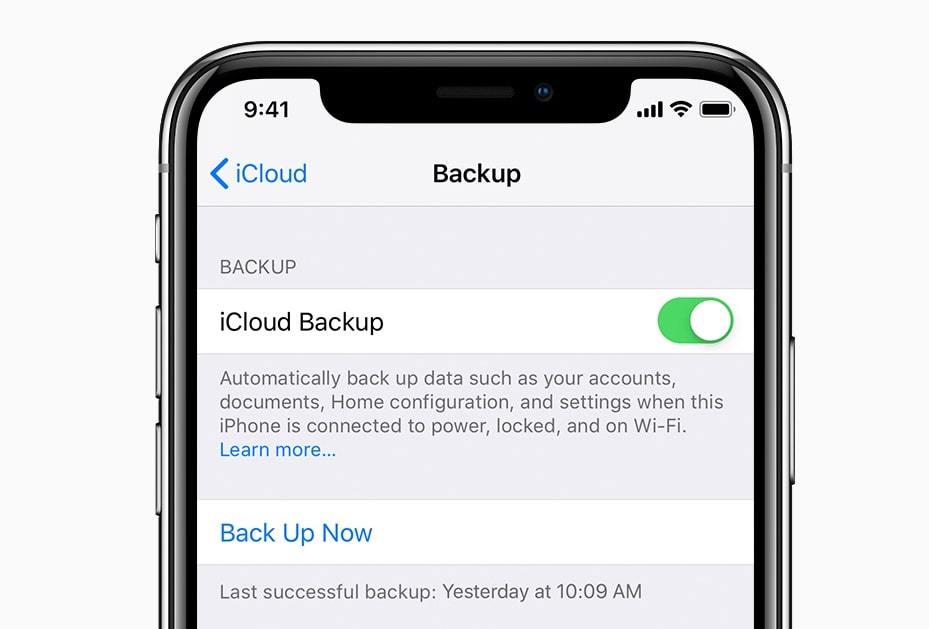
Force restart or hard restart, also known as a factory reset, this process will remove all information from your smartphone. It's a good idea to back up all your iPhone 6 data before you restart it.

If a hard restart still can't solve the problem on your phone, it can use the iPhone 6 DFU mode.

Related:


How Long is The Battery Life on iPhone 11, iPhone 11 Pro, & iPhone 11 Pro Max

Before releasing the iPhone 11, Apple provided some information about its latest product features and advantages. These include the battery life duration of the iPhone 11, and other 11 series which are promised to be 1 hour longer than the iPhone XR.

So how long is the iPhone 11 battery life take if used for activities like calling, watching videos, and playing music?

iPhone 11 Battery Life

How Long is The Battery Life on iPhone 11, iPhone 11 Pro, & iPhone 11 Pro Max


The iPhone 11 is equipped with a non-removable Li-On battery with a capacity of 3110 mAh. Supports two charging models, using USB Power Delivery 2.0 and Qi wireless charging and Fast Charging 18W mode.

The battery on the iPhone 11 has a 1 hour longer life than the iPhone XR, meaning it can take up to 26 hours of talk time. The iPhone 11 battery lasts up to 17 hours and 65 hours if used to play audio for video playback.

iPhone 11 Pro Battery Life

The iPhone 11 Pro is also equipped with a non-removable Li-On battery with a capacity of 3046 mAh. It features Fast Charging 18W and supports two charging models using Qi wireless and USB Power Delivery 2.0.

While this Pro version's battery life is 18 hours to play non-stop video and 65 hours to play audio, it's an hour longer to watch a video when compared to an iPhone 11.

iPhone 11 vs 11 Pro battery life, which one is more durable? 

In our opinion, it is the iPhone 11 Pro. However, it has a slightly smaller battery capacity, but the battery on the iPhone 11 Pro can outperform an hour when playing videos. 


iPhone 11 Pro Max Battery Life

The battery specifications on the iPhone 11 Pro Max version are superior to the two versions above. The Pro Max version is equipped with a non-removable Li-On battery with a capacity of 3969 mAh. As both versions of the iPhone 11 above, Pro Max also features Fast Charging 18W and Qi wireless charging.

iPhone 11 Pro Max can play video non-stop for 20 hours and 80 hours to play audio with the most battery capacity.

How to Show Battery Percentage on iPhone 11, iPhone 11 Pro, and iPhone 11 Pro Max

Check the Battery Percentage of iPhone 11 Pro. Suppose you've upgraded to iPhone 11 or iPhone 11 Pro from iPhone 6s, iPhone 7, or iPhone 8. In that case, you won't see a battery usage percentage pointer in the status bar of your iPhone. 

Then how do I check the battery percentage on iPhone 11 or iPhone 11 Pro? 

Apple understands that there is not enough space to put the percentage of battery usage in the status bar. The solution is the percentage of the battery placed in the iPhone Control Center. 

How to Check Battery Percentage on iPhone 11, iPhone 11 Pro, and iPhone 11 Pro Max

How to Show Battery Percentage on iPhone 11

First Method

This is probably the easiest and quickest method you can try.

Step 1: Open Control Center

Swipe down in the upper-right corner of the screen in portrait mode or landscape mode to access Control Center.

Step 2: Check battery percentage

In Control Center, you should see the hidden battery percentage along with the Bluetooth, Night Mode, and Location Services icons.

And to close Control Center, you can swap up from the bottom of the screen or tap a blank area other than Control Center. 

Second Method

To view or check the battery percentage set can be done when you charge your iPhone 11 device.

Whether charging using a cable or with wireless, the battery percentage can be seen on the iPhone screen (lock screen).

Third Method

You can also ask Siri to tell you the remaining power on your iPhone 11 or iPhone 11 Pro.

Press and hold the side button, or if you turn on the "Hey Siri" feature in the iPhone Settings menu, then you have to say, "Hi Siri, tell me the percentage of my iPhone battery". Wait a while Sirri will display the percentage of iPhone 11 battery on you.

All methods to check the above battery percentage will not work or cannot be done on jailbreak iPhone devices.

It's also worth reading how to check the battery percentage on your Apple Watch for Apple Watch users, so you don't have to bother removing your iPhone to do so.

How to Restore App on iPhone & iPad

how-to-restore-app-on-iphone


How to restore app on iPhone? In this simple guide, you will know the answer.

Follow this quick guide to restore deleted apps on iPhone.

How to Undelete an App or Recover Application on iPhone


Follow the simple step-by-step below, to restore deleted apps on your iPhone.


  1. On your iPhone, launch the App Store.
  2. Tap the profile icon in the top right corner.
  3. In your App Store Account, tap Purchased.
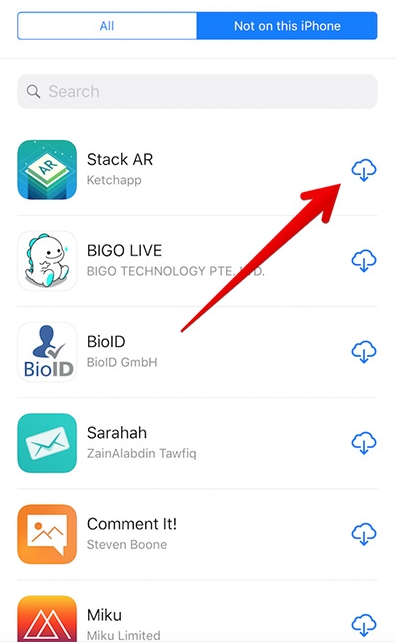
  4. Then tap My Purchases, and tap Not on this iPhone.
  5. Find and locate the app you deleted, which will be reinstalled. 
  6. Tap the cloud icon beside the app, then iPhone will download the app and install it.
  7. Now the apps you deleted are restored to Your iPhone again.


That's the steps to restore deleted apps on iPhone.

Hopefully useful.

How to Undelete an App on iPhone

How to Undelete an App on iPhone? Find the answers in this quick guide.

Sometimes accidentally apps on Your iPhone are deleted. But don't worry, because you can restore that deleted app to Your iPhone with pretty simple steps.

How to find deleted apps


Before you accidentally restore an App that you deleted, you'll need to find apps that you removed in the following way.

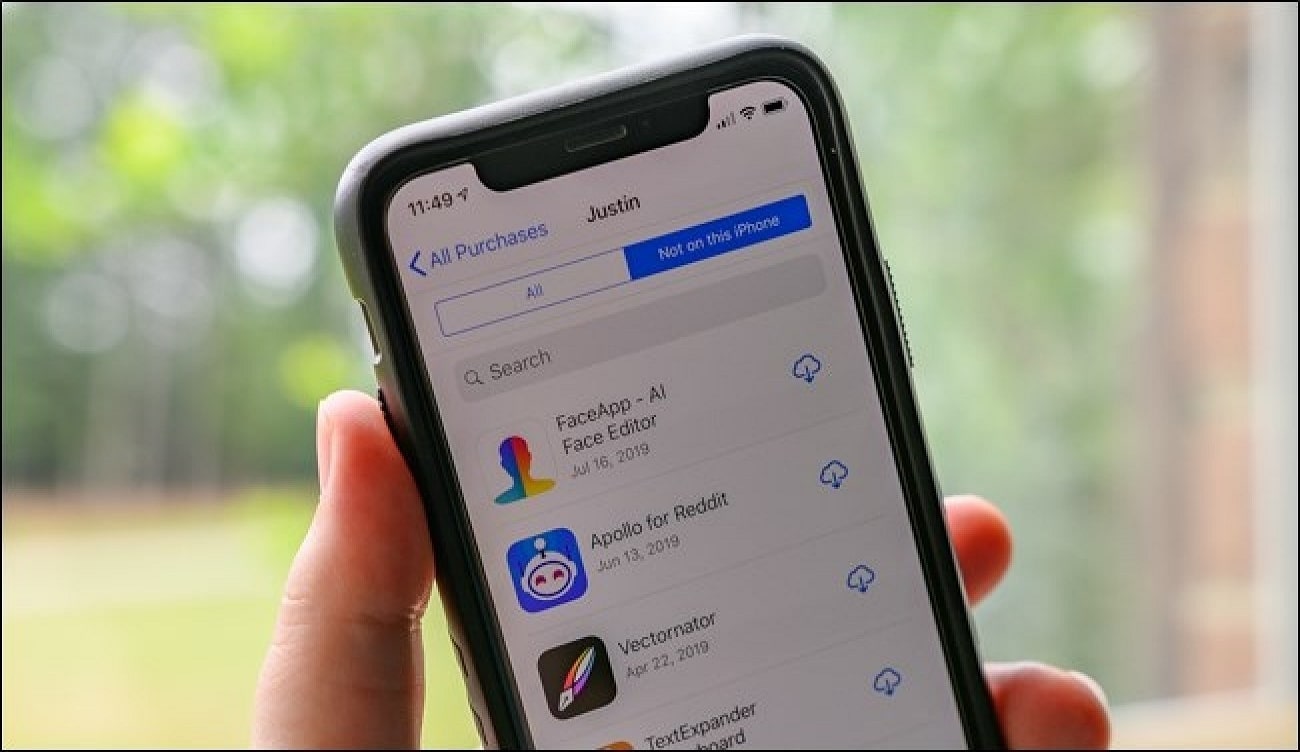
  • Open the APP Store > update
  • Find the Purcashed  section > tap the Not on this iPhone icon


how-to-undeleted-an-app-on-iPhone

With the simple steps above, you can find apps that have been deleted accidentally.

Restoring deleted apps using Search


This is one of the easiest methods to restore accidentally deleted apps back to your iPhone.

Follow the steps below to find the deleted iPhone app and restore it to your device.
  1. Sign in to the APP Store and use the search box to find for deleted apps.
  2. Make sure that the app version is the same as you accidentally deleted.
  3. Tap the cloud download icon, and wait for the process to finish.
  4. If the process is complete, then the deleted app has returned to your iPhone complete with data (unless specifically removed).

Recover deleted apps using Purchased Lists


  1. Open the App Store on your iPhone > Update
  2. Select the Purcashed section > tap Not on this iPhone to see which apps have been removed
  3. Tap the app you want to restore to Your iPhone
  4. Tap the download icon, and wait for the process to finish.
The above method can be used on iOS in general: That means you can try it on Your iPhone, iPad, and iPod Touch.


How to Change Background on iPhone / Wallpaper

how-to-change-background-on-iphone

How to change background on iPhone? Discover how to change the background wallpaper on Your iPhone in this simple guide.

Change Background Wallpaper on iPhone


  1. Lift your iPhone into the Settings menu.
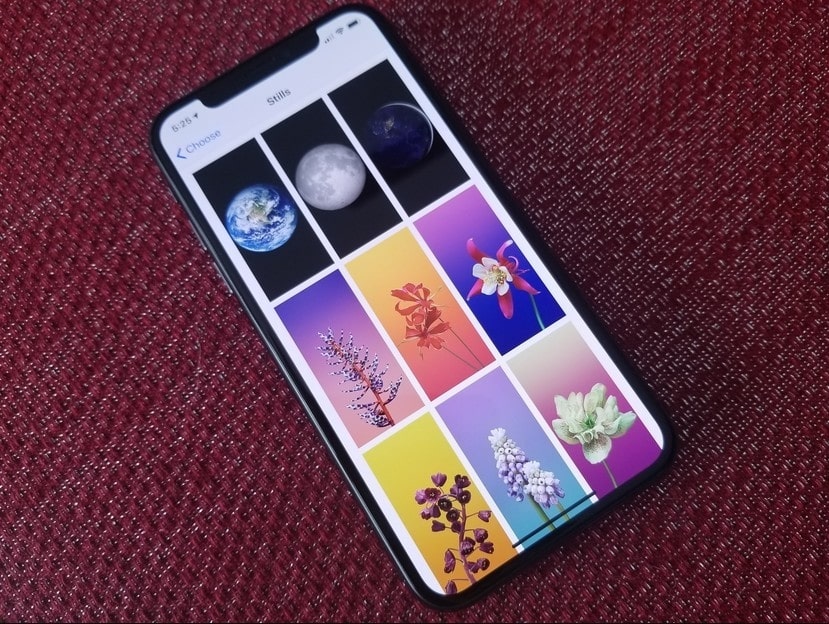
  2. Scroll down and look for Wallpaper options, tap to change your iPhone Wallpaper.
  3. Tap Choose a New Wallpaper > next to find the photo you want to use. You can use the built-in iPhone wallpaper for your screen background, or you can use your own photos from external memory.
  4. A confirmation message will appear with three option options, set the image as the lock screen, home screen, or both. 
  5. Tap your selection, and the iPhone wallpaper will be set.

If you want to use different images for Your iPhone wallpaper and lock screen, just repeat the steps above.

Audio Recorder for iPhone: Top 4 Apps

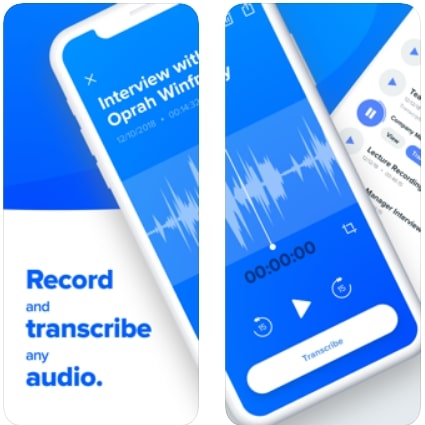
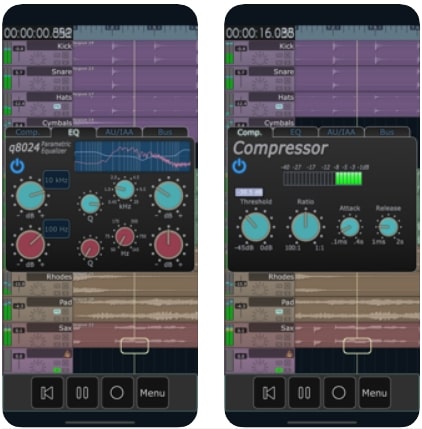
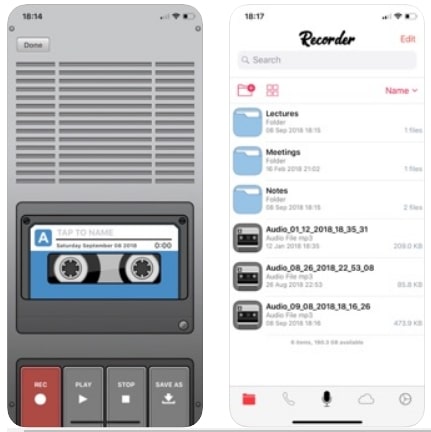
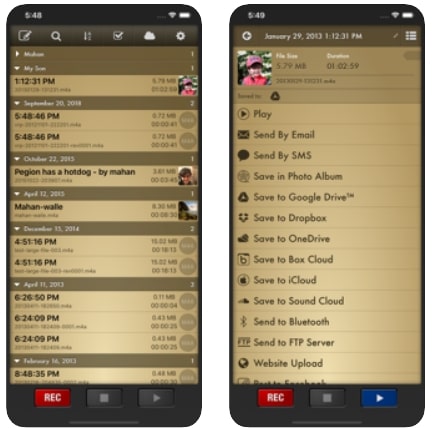
Top 4 Apps Audio recorder for iPhone. In this simple guide, we recommend four apps for recording audio and sound on Your iPhone and iPad smart phones.

The four audio recorder apps can produce good audio recordings, and can be saved to cloud storage.

4 Apps Audio Recorder for iPhone


recording-audio-iphone

Voice Recorder Pro: A professional voice recorder, which lets you record voice memos in a variety of audio formats. It allows you to export to DropBox, Google Drive, and OneDrive.

how-to-record-audio-in-iphone


MultiTrack DAW: An amazing App, can turn Your iPhone into a digital audio workstation. It supports 8 stereo audio tracks, up to 24 bit/96kHz sound for each. Up to 16 simultaneous inputs can be handled.

voice-recording-iphone


Voice Recorder & Audio Editor from TapMedia: lets you record audio, as long as you want, on your phone and upload to iCloud, Google Drive, Dropbox, and other cloud services. Allows you to rotate and trim recordings.

voice-recorder-on-iphone


Voice Recorder Plus: lets you record audio and voice memos on your phone. Supports MP3, Wave, and other audio formats. You can upload recordings to different clouds.


Ad Placement