OSX NEWS: iCloud
Showing posts with label iCloud. Show all posts

Check My iCloud Email Online
check-my-icloud-email-online


Check my iCloud email online. You can still follow this guide even if you're using a Windows 7 or earlier system.

Check iCloud Email Online From Web Site


Open your Web browser, can use Google Chrome, Firefox, or any other.


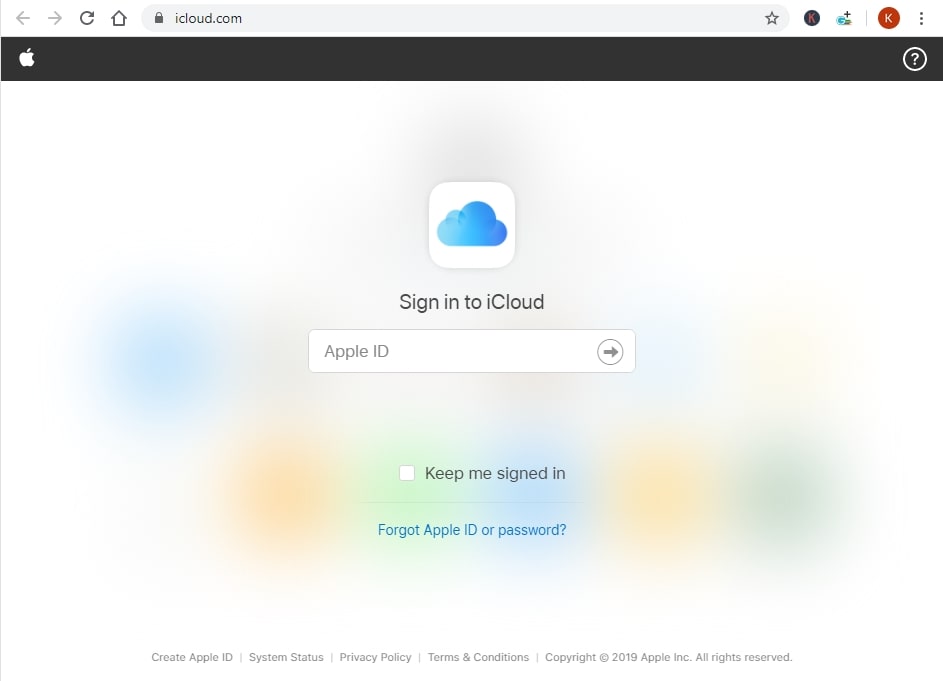
  1. Go to the iCloud homepage in the URL https://www.icloud.com/
  2. Sign in to iCloud using your Apple ID.
  3. If your two-factor authentication is enabled, then you will receive a six-digit authentication code sent to your iPhone or iPad. Input the code into the available fields.
  4. The Trust this browser message appears? We recommend you choose Don't Trust if you're accessing iCloud with a public computer, click Not Now If you're not sure what to choose at the moment, and click Trust if you're using your personal computer.


You're now signed in to your iCloud account dashboard. You can choose the Mail icon to check your iCloud email or calendar icon to see your appointments or task tables.
Check iCloud Email From Windows 10

check-iCloud-email


How to check iCloud email from Windows? Here is a guide for you who want to know how to check your iCloud email.

Follow each step to check your iCloud mail on Windows in this guide.

Check iCloud Email in Windows


The first step in being able to check iCloud mail in Windows is to add your iCloud account to your Windows computer.

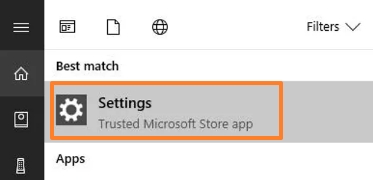
Go to the Settings menu on your Windows computer.
icloud-mail

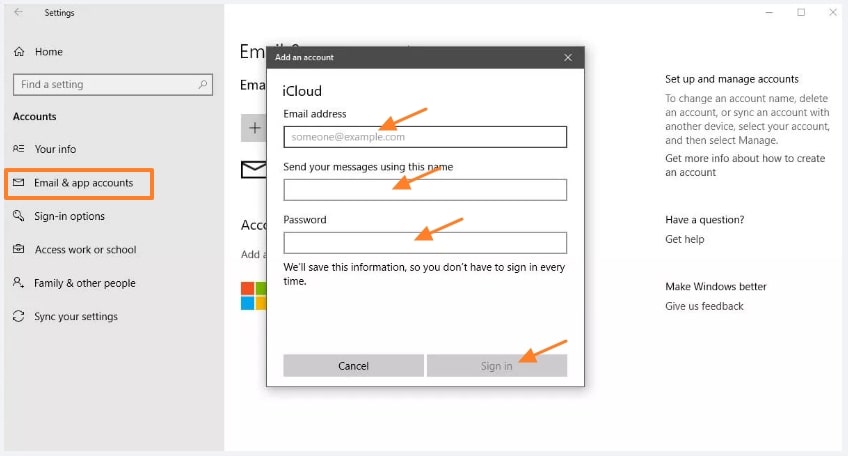
  1. Select Accounts, then select Email & App Accounts.
  2. Click (+) Add an account under Email, calendar, and contacts in the right pane.
  3. A new window contains the account type appears, select iCloud.
  4. Enter your iCloud account credentials.
  5. Click the Finish button if a confirmation message appears, then exit the Add account view.
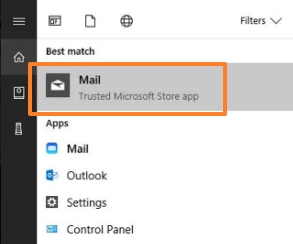
  6. Next, type "mail" in Windows Search and the Windows Mail app will launch. 
    icloud-account-mail
     Your iCloud Email and iCloud calendar are downloaded to Windows.

That's how to check iCloud mail from a Windows computer.

For the record, if your iCloud mail account uses two-factor authentication maybe the Windows Mail app will not run as desired.

How to log into iCloud on iPhone

how-to-log-into-icloud-on-iphone


How to log into iCloud on iPhone? Here's a step-by-step guide for how to sign in, access and manage your iCloud account via the Settings app on your iPhone.

How to log into iCloud on iPhone

  1. Open the Settings app on your iPhone.
  2. Tap  "Sign in to your iPhone " Right below the search field.
  3. Use your Apple ID to sign in to iCloud, it can take a few minutes.
  4. Enter the requested four-digit passcode.
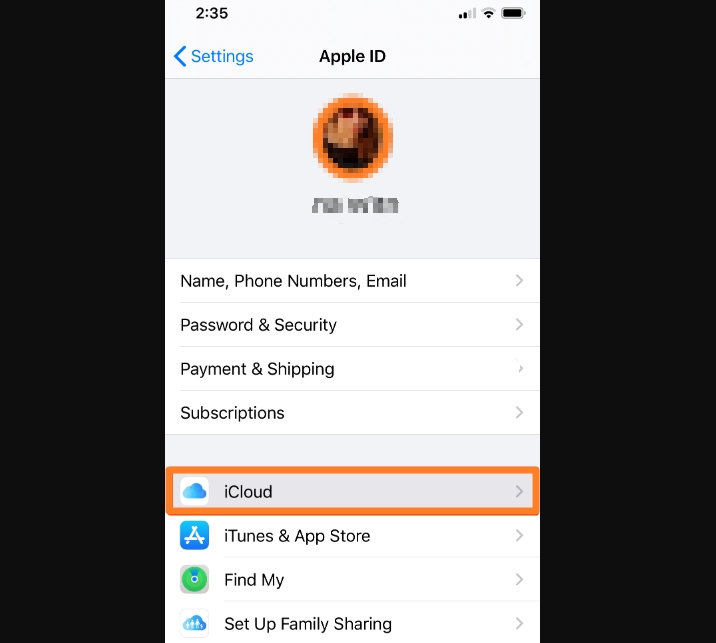
  5. After logging in, find and tap  "Apple ID, iCloud, iTunes & App Store"
  6. You'll be taken to your Apple ID page 
  7. Select iCloud.
Now, you can set up iCloud memory usage, or do other settings in your iCloud.

Backup iPad With iCloud Step by step

In this guide you will learn how to backup iPad with iCloud step by step clearly.

Making iCloud to backup your iPad is a good step to anticipate if your device experiences problems in the future. How do I backup my iPad with icloud? Check out the guidelines below.


How to backup my iPad to the cloud


backup-ipad-with-icloud
  1. On your iPad device, go to Settings > tap iCloud
  2. Then tap Backup, activate iCloud Backup by sliding the gray button until it's green,> tap Back Up Now.
  3. Now you have backed up iPad to iClod.
That's how to back up iPad with iCloud. The advantages of making iCloud as a backup place You do not need to connect the iPad device with Mac or laptop. Data backup can also be accessed anytime, anywhere via the internet.

Hopefully useful.

Ad Placement